
Grafana has single sign-on (SSO) built in. It has settings of its own for Google, GitHub, GitLab, Entra ID and Okta, and Generic OAuth for any other OpenID Connect (OIDC) provider. All of it is in the open-source edition of Grafana 13.3.1↗, the current release (Grafana's authentication docs↗). Each one adds a sign-in button to Grafana's login page, while the page itself and the API keep answering anyone who finds the address, and by default the page shows Grafana's version.
To keep Grafana off the internet and still give your team one company sign-in, put a sign-in step in front of Grafana and let Grafana sign people in from the signed header it passes on.
What SSO options does Grafana have?
Each provider has a section in grafana.ini, or a form under Administration → Authentication. You register Grafana as an app with the provider and copy its client ID and secret into Grafana. These settings decide how it behaves, with their defaults from Grafana's Generic OAuth docs↗ and defaults.ini↗:
| Setting | Default | What it does |
|---|---|---|
client_id, client_secret | a placeholder, empty | The client from the app you registered with your provider. |
scopes | user:email | Set openid profile email for an OIDC provider. Generic OAuth needs an email address to sign anyone in. |
root_url in [server] | http://localhost:3000/ | The address people open. The callback to register with your provider is that address followed by /login/generic_oauth. |
allow_sign_up | true | Creates a Grafana user at a person's first sign-in. |
auto_login | false | Sends people straight to the provider instead of showing Grafana's login page. |
role_attribute_path | none | Maps a claim, such as a group, to the Viewer, Editor or Admin role. |
disable_login_form in [auth] | false | Hides Grafana's own username and password form when true. With the default, the form stays next to the sign-in button. |
Google sign-in has its own section, [auth.google], with the redirect URI https://<your Grafana>/login/google and allowed_domains or hosted_domain to keep it to your Google Workspace. With an extra Cloud Identity scope, Grafana can also read Google groups, limit sign-in to them and map them to roles (Google OAuth docs↗). Team sync, which turns provider groups into Grafana teams, needs Grafana Enterprise or Grafana Cloud (team sync docs↗).
Grafana's Google OAuth docs↗ give this block for grafana.ini, with your own client ID, secret and domain:
[auth.google]
enabled = true
allow_sign_up = true
auto_login = false
client_id = CLIENT_ID
client_secret = CLIENT_SECRET
scopes = openid email profile
auth_url = https://accounts.google.com/o/oauth2/v2/auth
token_url = https://oauth2.googleapis.com/token
api_url = https://openidconnect.googleapis.com/v1/userinfo
allowed_domains = mycompany.com mycompany.org
hosted_domain = mycompany.com
use_pkce = true
The login page further down comes from a test that turned this section on with a placeholder client to show the button. Nobody signed in with it.
If Grafana is already on the internet and only needs sign-in, these settings are all it takes.
What does a stranger see at Grafana's address?
With Grafana's own SSO, every route answers whoever finds the hostname, and Grafana decides what to do with each request. By default the login page shows the sign-in button, the username and password form, and Grafana's exact version. Grafana creates an admin account with the password admin on first start unless you set another one before that start (defaults.ini↗), and until someone changes it, that form accepts it from anyone who reaches the page.
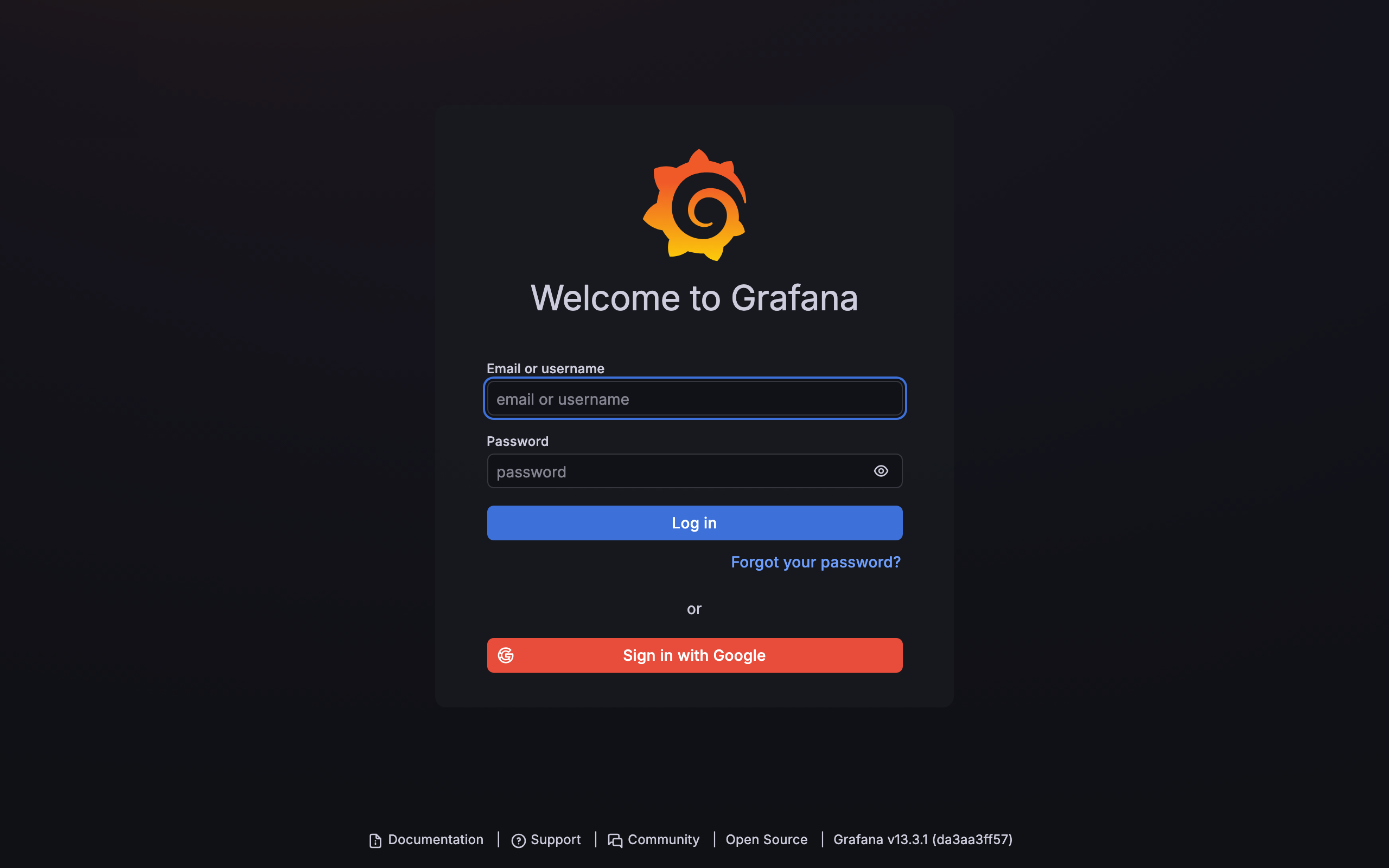
Grafana's own settings close part of that. disable_login_form hides the form, auto_login skips the login page (though /login?disableAutoLogin=true still shows it), and hide_version = true↗ under [auth.anonymous] masks the version for signed-out visitors.
Every route Grafana answers before sign-in still runs Grafana's code for anyone who reaches it, so a flaw in one of those routes is open to the internet. In 2021, a path traversal in Grafana 8.0.0-beta1 to 8.3.0 gave access to files on the Grafana server through /public/plugins/ URLs, with no sign-in needed. Grafana fixed it in 8.3.1, 8.2.7, 8.1.8 and 8.0.7, and its advisory for CVE-2021-43798↗ rates it 7.5, high.
LocalCan Access puts Google, Microsoft, GitHub or your own OIDC sign-in in front of a web app on your own server. With it in front of Grafana and Grafana's published port closed (step 2 below), LocalCan answers a stranger's requests before Grafana sees them, so none of Grafana's code runs for someone outside your rules. The one exception is the public paths you keep. For a stranger, LocalCan answers every other path the same way, with the redirect or the 401 shown below, so reaching a flaw in Grafana first takes a sign-in your rules allow, or a service token (public paths).
A browser opening Grafana's login page gets a redirect to LocalCan's sign-in:
$ curl -sk -o /dev/null -D - -H 'Accept: text/html' -H 'Sec-Fetch-Mode: navigate' -H 'Sec-Fetch-Dest: document' https://e2e-app.example.com/login
HTTP/2 303
cache-control: no-store
server: LocalCan
x-robots-tag: noindex, nofollow
The calls in this section ran against a test setup, which is why the hostname is e2e-app.example.com and the commands carry -k (the test setup has its own certificate). Each call also carried --connect-to to reach the test server, left out here. The output is trimmed to the headers that matter, and the location header is left out because it names the test setup's sign-in host.
A script calling the API gets a 401 from LocalCan, and Grafana never receives the request:
$ curl -sk -i https://e2e-app.example.com/api/search
HTTP/2 401
content-type: application/json
server: LocalCan
www-authenticate: LocalCan-Access
x-localcan-auth: login

{"error":"authentication_required","login":"/.localcan/access/login"}
The Grafana preset makes /api/health a public path, so an uptime monitor outside can check Grafana, and Grafana answers it with its version:
$ curl -sk -i https://e2e-app.example.com/api/health
HTTP/2 200
content-type: application/json; charset=UTF-8
server: LocalCan

{
  "database": "ok",
  "version": "13.3.1",
  "commit": "da3aa3ff574e7dbbf808c66b6daa744defed0441"
}
Grafana's hide_version setting masks the version there too (http_server.go↗), or you can remove /api/health from the app's public paths if nothing outside checks it. With the public path removed, the same call got LocalCan's 401:
$ curl -sk -i https://e2e-app.example.com/api/health
HTTP/2 401
content-type: application/json
server: LocalCan
www-authenticate: LocalCan-Access
x-localcan-auth: login

{"error":"authentication_required","login":"/.localcan/access/login"}
A monitor that can send headers can use a service token instead.
How does Grafana sign people in from Access?
On each request from a signed-in person, LocalCan sends a short-lived token in the LC-Access-Jwt-Assertion header. It is a JWT signed with RS256 by a key that belongs to your team, and it carries the person's ID, their email address and name when the sign-in method gives them, and their groups when your own OIDC provider sends a groups claim (identity header). Grafana's JWT authentication↗ checks the token against your team's public keys, creates the Grafana user the first time, and signs the person in.
Grafana and apps that check the identity header sign people in from it. Metabase, n8n and Umami keep their own login behind LocalCan Access, and so does Open WebUI.
Grafana holds no OAuth client or secret in this setup. Google, Microsoft and GitHub sign-in are ready to use in every app, and your own OIDC provider is added once for the team and then chosen per app (sign-in methods), so people reach Grafana and your team's other tools with the same company account.
What does signing in look like?
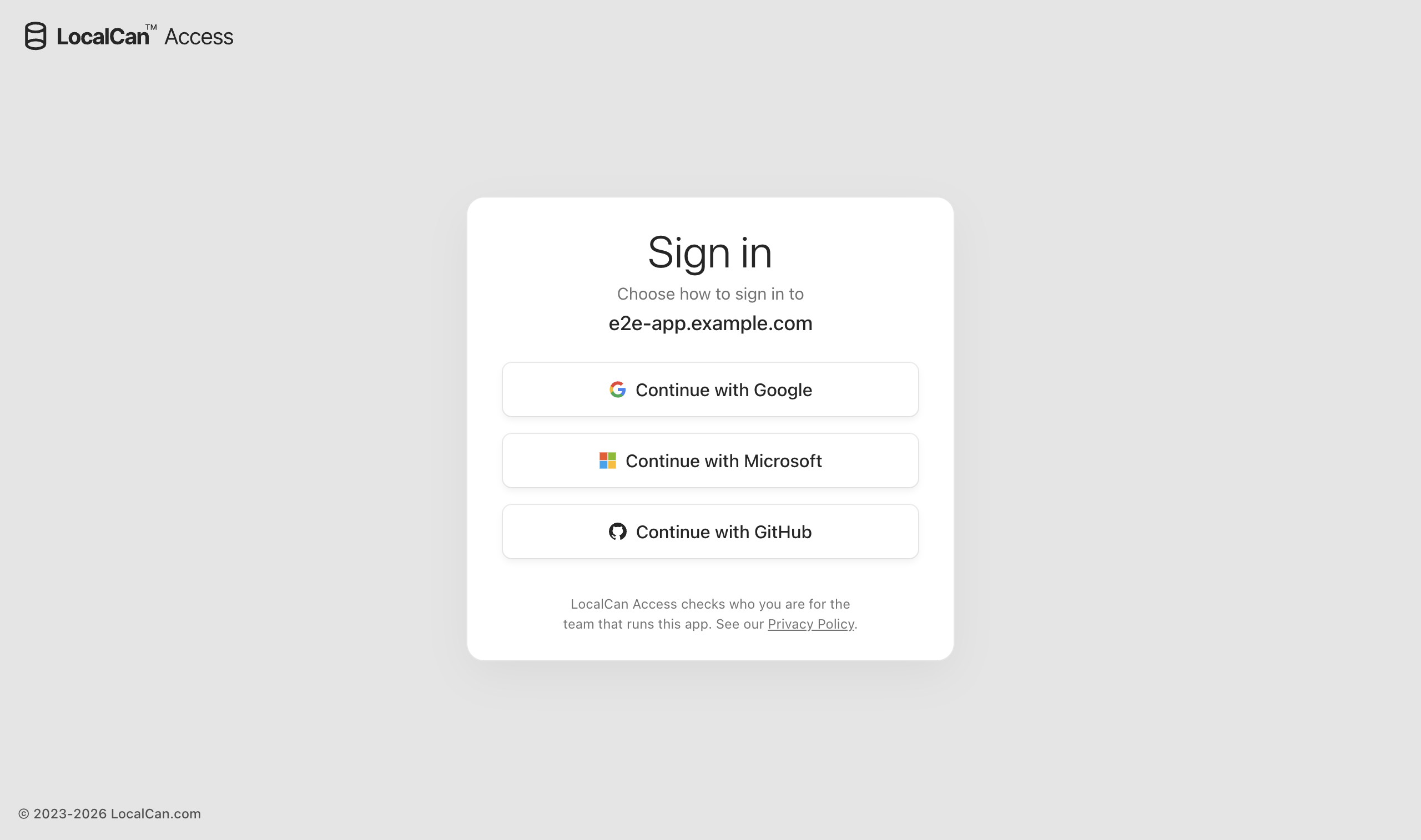
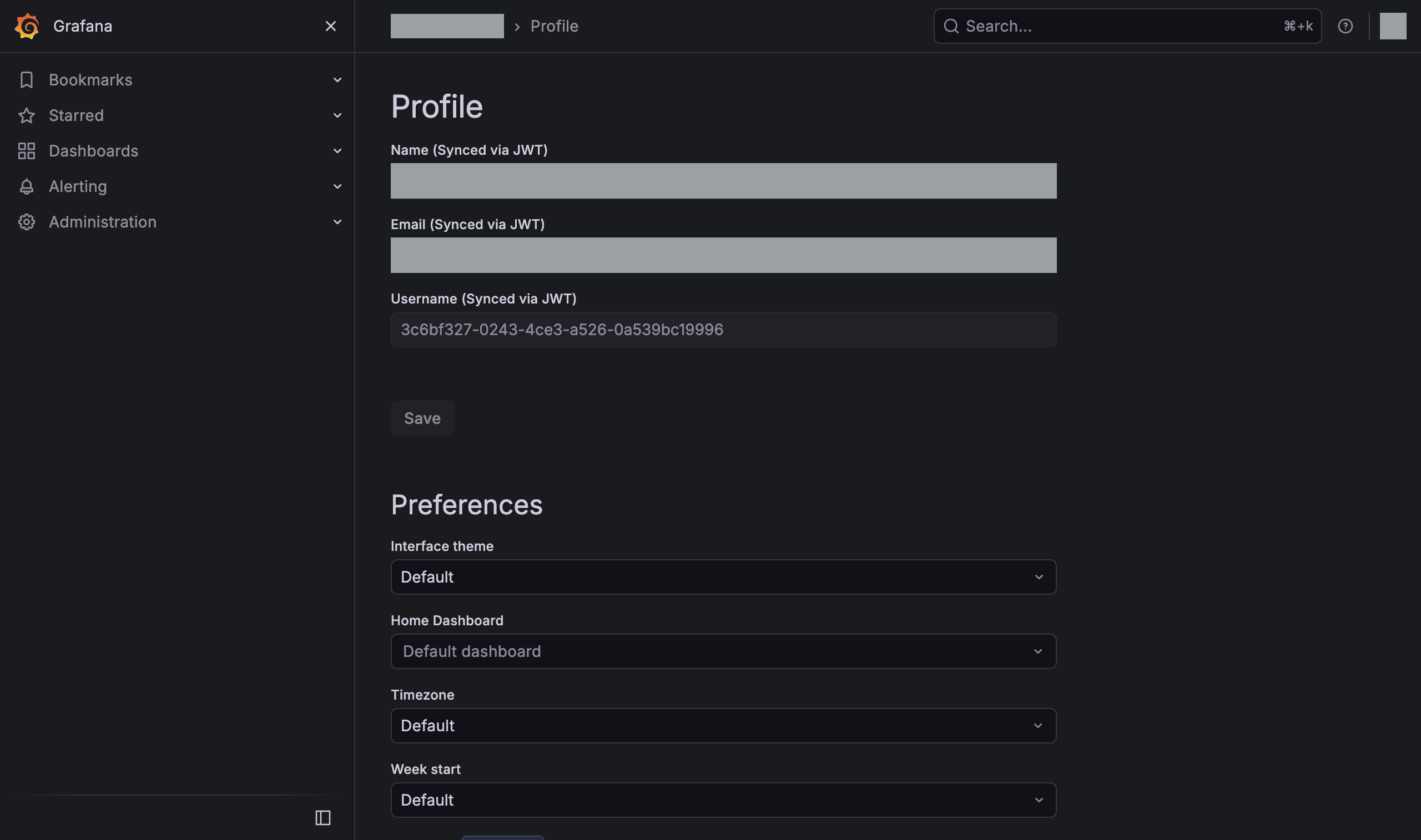
I ran Grafana 13.3.1 behind Access on a test setup on November 21, 2026, and signed in with a Google account. The app offered Google, Microsoft and GitHub, so opening its address showed LocalCan's sign-in page with a button for each.
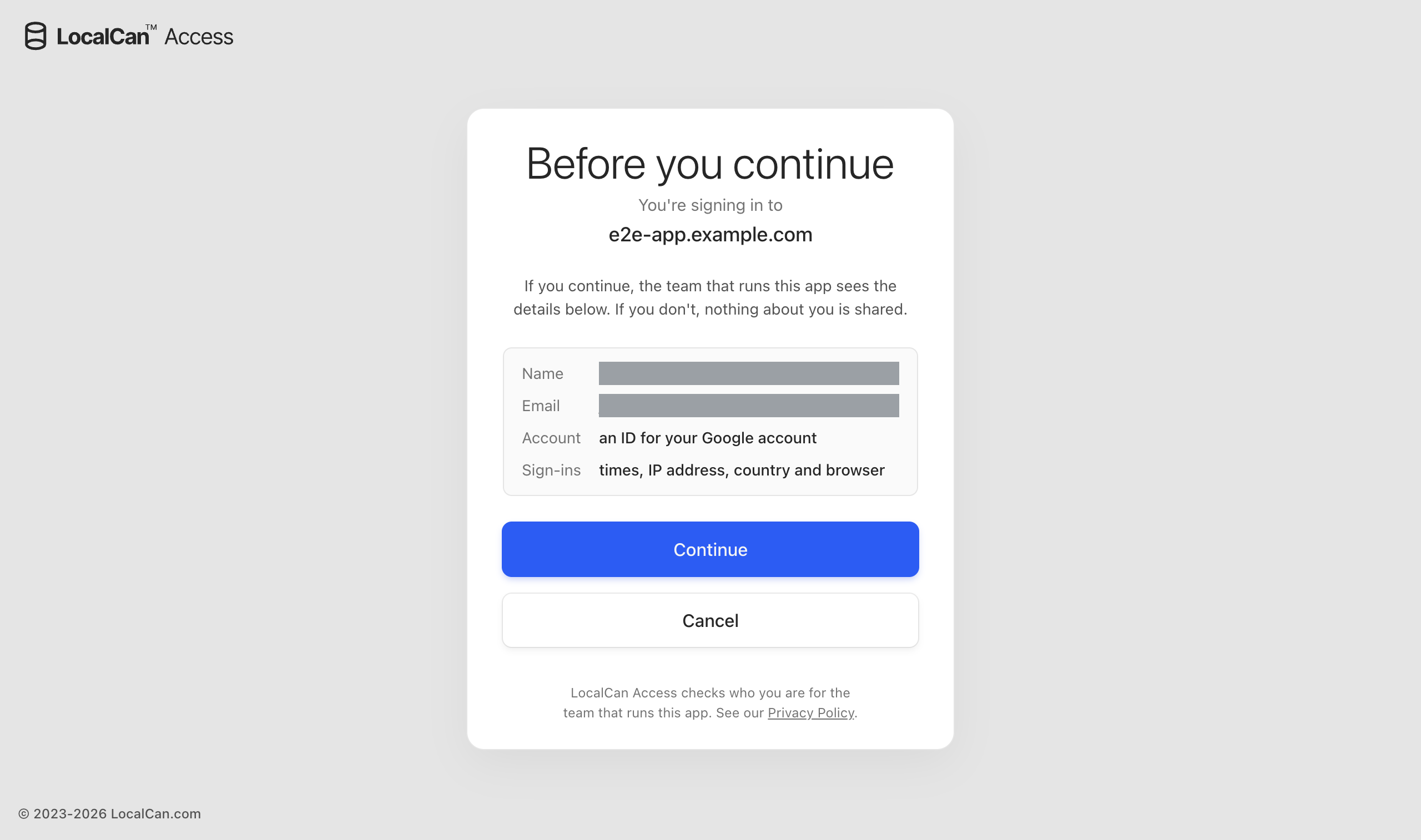
After Google's own sign-in, LocalCan showed its consent page. It appears the first time someone signs in to an app with Google, Microsoft or GitHub, lists what the team will see, and shares nothing until the person selects Continue (what people see on first sign-in).
After Continue, the browser landed on the Grafana dashboard, with no Grafana login page in between. In that run:
- Grafana created the user at the first request, as a Viewer, with the name and email address from the token and the
subclaim as the username. - All 111 requests that reached Grafana with the header verified against the team's keys, issuer and app, including the dashboard's queries (
POST /api/ds/query, answered 200) and the Grafana Live WebSocket (/api/live/ws, answered 101). - The token named Google as the sign-in method and carried no groups.
- The browser held one cookie for the address, LocalCan's. Grafana set no session cookie of its own, so it knows the person only from the header on each request.
The test setup's issuer, and the key set URL under it, was a local address over plain http. Grafana fetches keys over http only in development mode (key_sets.go↗), so the run set app_mode = development and pointed the settings at that issuer. A test recorder sat in front of Grafana to check each header, and Grafana had its own listen address and port. Everything else was the [auth.jwt] block shown in the setup steps, as written, with the test app's address and audience, set as GF_* environment variables. The commands and numbers come from my own runs.
How do you put company sign-in in front of Grafana?
Access is in Preview and priced per app: Starter is $29 a month for 3 apps, every tier includes unlimited viewers under fair use, and Access pricing lists the other tiers. You can set up 3 apps before you pay. The steps follow the quick start, which also lists what to have first: Access on your team, an owner or admin account with two-factor sign-in, a Linux server that reaches Grafana, and a hostname on a domain you control.
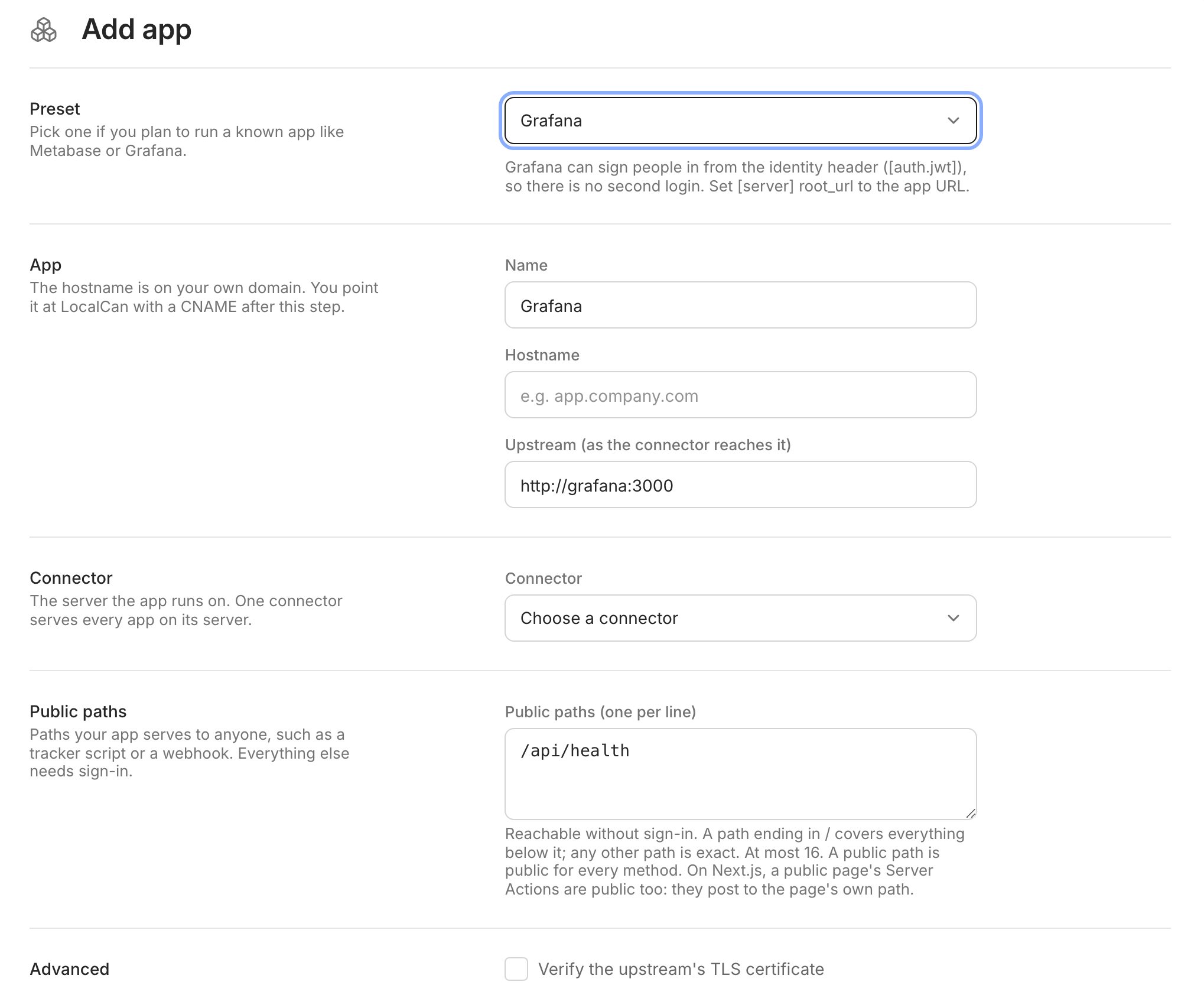
1. Add the app. In the dashboard, open LocalCan Access → Apps, select Add app and choose the Grafana preset. It fills in the upstream http://grafana:3000, which is Grafana on its default port, reached over a shared Docker network. It also adds the public path /api/health. Change the upstream if your Grafana service has another name. Enter the hostname people will open, such as grafana.example.com, and for a first app choose New connector on this server. Creating the app shows the connector key once, so copy it before you close the dialog.
2. Run the connector next to Grafana. The connector runs on Linux, with Docker, Docker Compose or systemd. Save the key in a file that the connector's user owns:
sudo install -d -m 0755 /etc/localcan
sudo install -m 0400 -o 65532 -g 65532 /dev/stdin /etc/localcan/connector.key
# paste the key, press Enter, then Ctrl-D
Then add the connector to the Compose file that runs Grafana, so it shares Grafana's network:
services:
  localcan-connector:
    image: ghcr.io/localcan/connector:1
    restart: unless-stopped
    environment:
      LOCALCAN_CONNECTOR_KEY_FILE: /run/secrets/connector_key
    secrets:
      - connector_key
    volumes:
      - localcan-connector:/data

secrets:
  connector_key:
    file: /etc/localcan/connector.key

volumes:
  localcan-connector:
Remove Grafana's published port, the -p 3000:3000 mapping from Grafana's Docker instructions↗ or its ports: entry, and close any other way in, so the hostname is the only path to Grafana.
3. Point the hostname at LocalCan. The app's Domain section shows a CNAME target that ends in .cname.localcan.dev. Add a CNAME record from your hostname to it at your DNS provider. LocalCan gets the certificate from Let's Encrypt once the record resolves and the connector is connected.
4. Choose who may sign in. A new app lets nobody in. Add a rule under Who may sign in: your company's Google Workspace domain, a Microsoft tenant, exact email addresses, or a group from your own OIDC provider. Sign-in methods and rules lists what each method can check.
5. Turn on JWT sign-in in Grafana. Add this to grafana.ini, with the issuer, the audience and the key set URL copied from the app's Identity header section:
[server]
root_url = https://grafana.example.com/

[auth.jwt]
enabled = true
header_name = LC-Access-Jwt-Assertion
jwk_set_url = https://access.localcan.com/t/team_xxxxxxxxxxxx/.well-known/jwks.json
cache_ttl = 5m
expect_claims = {"iss": "https://access.localcan.com/t/team_xxxxxxxxxxxx", "aud": "app_xxxxxxxxxxxx"}
username_claim = sub
email_claim = email
auto_sign_up = true
skip_org_role_sync = true

[users]
auto_assign_org_role = Viewer
Set root_url to the app's address. Grafana Live accepts a WebSocket only from that origin, and dashboards stop updating without it. The expect_claims line matters because Grafana checks only the expiry and time claims by default, and the audience keeps a token for another app of your team out. The Grafana section of the identity header docs has notes on these settings.
6. Open the address. LocalCan sends you to your sign-in method and back, and Grafana opens signed in. If Grafana still shows its login page, check the [auth.jwt] settings and root_url, as the troubleshooting entry for Grafana's login page describes.
Which Grafana role do people get?
Viewer, from auto_assign_org_role. With skip_org_role_sync = true, roles you change in Grafana stay changed at the next sign-in. Google, Microsoft and GitHub sign-ins carry no groups (identity header), so with those methods you set roles in Grafana. If roles must follow Google groups, Grafana's own Google sign-in does that with the Cloud Identity scope, role_attribute_path and skip_org_role_sync = false.
With your own OIDC provider and a groups claim, the groups arrive in the token in lowercase, and Grafana's role_attribute_path can map them to roles once skip_org_role_sync is false (JWT role mapping↗).
Can someone fake the header?
LocalCan removes every LC-Access-* header a client sends before the request reaches Grafana (identity header).
In the test run, a real token copied from a signed-in request was sent back as a header in two ways. With no session, LocalCan answered with the same 401 as the API call above, and Grafana never received the request. With a service token, which lets a script in without a browser sign-in, the request reached Grafana with no identity header, and Grafana refused it:
$ curl -sk -i -H 'LC-Access-Client-Id: st_xxxxxxxxxxxx' -H 'LC-Access-Client-Secret: <secret>' -H 'LC-Access-Jwt-Assertion: <a real token copied from the app>' https://e2e-app.example.com/api/user
HTTP/2 401
content-type: application/json; charset=UTF-8
server: LocalCan

{
  "extra": null,
  "message": "Unauthorized",
  "messageId": "auth.unauthorized",
  "statusCode": 401,
  "traceID": ""
}
The call also carried a marker header for the test recorder, left out here, and the output is trimmed like the ones above.
Keep Grafana's auth proxy off. [auth.proxy] signs in whoever the X-WEBAUTH-USER header names, and Grafana's auth proxy docs↗ offer a list of allowed source addresses to stop people spoofing it. LocalCan doesn't set or remove that header (identity header), so with [auth.proxy] on, a signed-in member of your team could send another person's name. [auth.jwt] checks a signature instead.
What does LocalCan see of Grafana's traffic?
LocalCan's servers end HTTPS for the hostname, since they hold its certificate. They see each request in plaintext, pass it on to the connector, and stream Grafana's response back without keeping it.
For requests to Grafana's address they log one line per request, with the method, host, path, the names of query parameters but not their values, the status, the duration and the visitor's IP address. A sign-in, a sign-out, a refused request or a service-token call adds a line with the outcome, the host and the IP address, plus the token's ID for a service-token call (never its secret). They never log other headers, cookies, user agents, any part of a body or the identity header, so the dashboards' queries and their results stay out of LocalCan's logs (what LocalCan can see).
What happens if LocalCan can't be reached?
LocalCan is in the path of every request. If LocalCan's sign-in service can't be reached, people already signed in keep their session for up to 60 minutes after its last successful check, and new sign-ins wait until LocalCan is back (how fast a change takes effect). The identity header stops sooner, once the current token expires, after 10 minutes at most (identity header). Grafana then sends people to its own login page.
An admin still signed in to the app through LocalCan can use Grafana's own admin account on that page for up to those 60 minutes, because [auth.jwt] leaves the username and password form on. Grafana itself keeps running on your server the whole time.
In a second test on November 21, 2026, Grafana 13.3.1 ran on the test machine with the block from step 5 as written. A request without the header got a redirect to /login, and the admin password signed in there, in a call that went to Grafana directly. The output is trimmed:
$ curl -s -i -H 'content-type: application/json' -d '{"user":"admin","password":"<admin password>"}' http://127.0.0.1:3402/login
HTTP/1.1 200 OK
Content-Type: application/json
Set-Cookie: grafana_session=<value>; Path=/; Max-Age=2592000; HttpOnly; SameSite=Lax

{"message":"Logged in","redirectUrl":"/"}
Give that account a strong password, which admin_password sets before Grafana's first start (defaults.ini↗).
What happens when someone leaves the team?
LocalCan Access checks with the sign-in method only when someone signs in. Suspending or deleting a person in Google Workspace, Microsoft Entra, GitHub or your own OIDC provider stops their next sign-in, and a session they already have keeps working until it ends, after 24 hours or the Sign people out after length it started with (people, blocks and sign-out). To end it sooner, block them or select Sign out of every app under LocalCan Access → People, and their sessions end within 2 minutes on every app. A shorter Sign people out after setting narrows the window. Grafana keeps no session of its own, so it stops signing them in when the LocalCan session ends.